
How to scan a sports card for the best results
Short answer
Lay the card flat on a plain surface, use bright, even light with no glare, fit the whole card in the frame and hold your iPhone straight above it. Scan the front, then the back if you can: the back is optional but recommended, because it often shows the year, set and card number. Sleeves, top loaders and slabs are fine. If a result is wrong, edit the details or scan again.
Good and bad photos
-
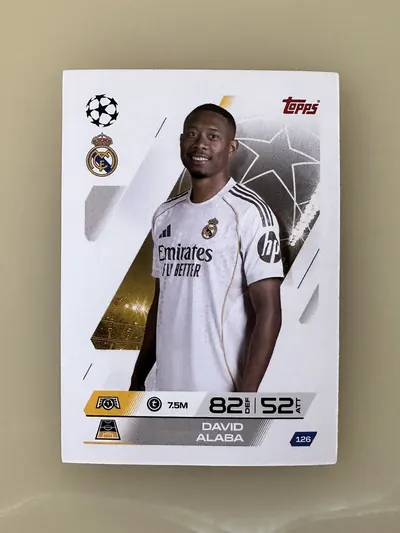
✓ GoodFlat, straight, even light, whole card in frame -
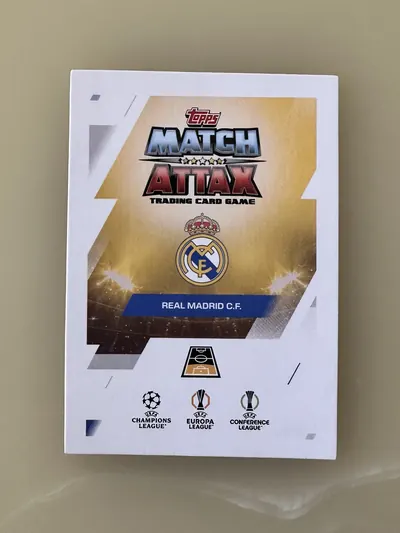
✓ GoodThe back, shot the same way, adds the year, set and number -
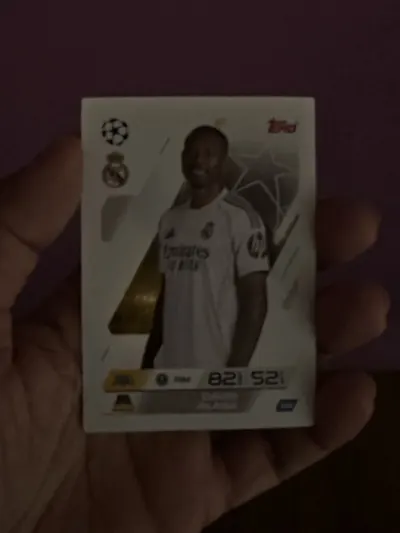
✕ AvoidToo dark: details and colours get lost -
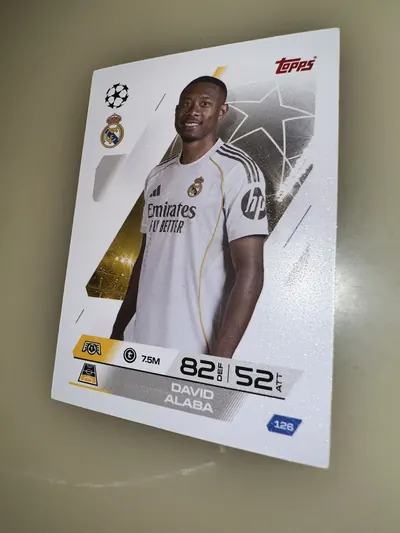
✕ AvoidTilted: the card is stretched out of shape -
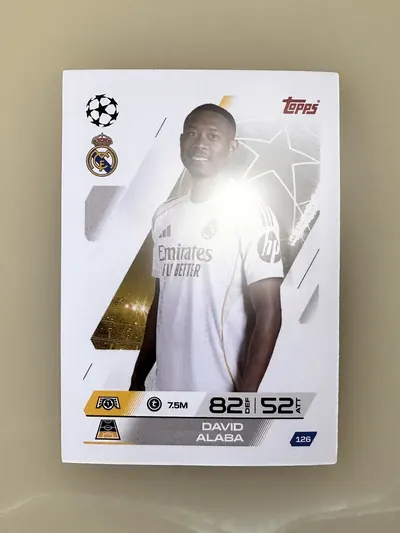
✕ AvoidGlare: a bright spot hides the print -
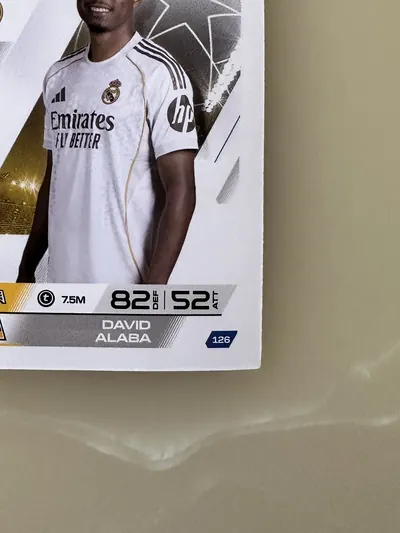
✕ AvoidCut off: part of the card is outside the frame -
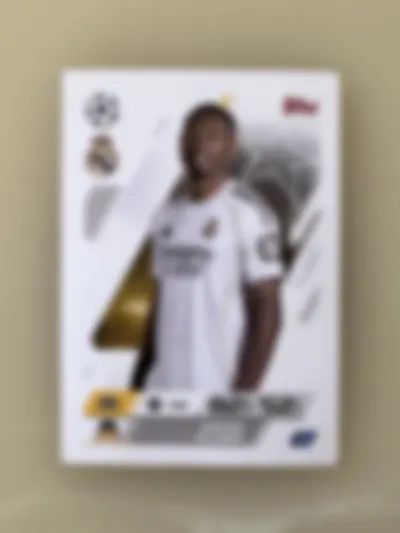
✕ AvoidBlurry: hold still and tap to focus -
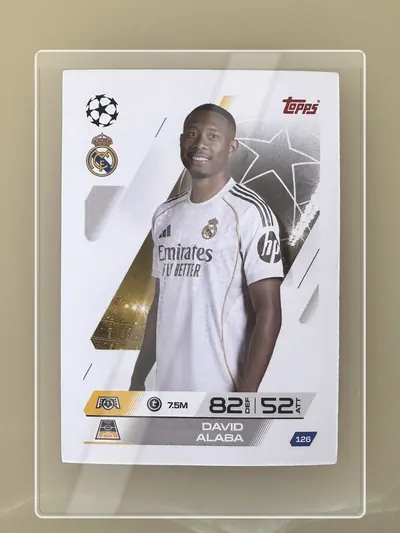
✓ GoodIn a top loader: fine, just check for reflections -
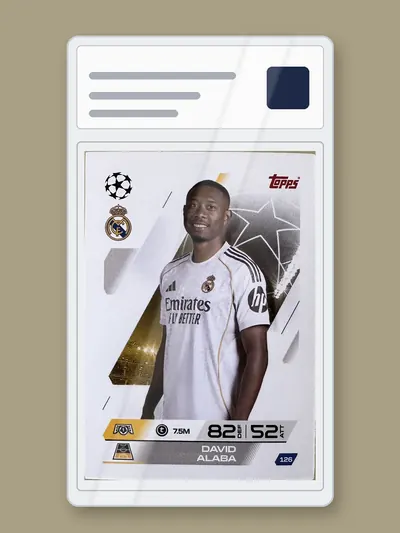
✓ GoodIn a slab: fine, keep the label in the frame
Some examples are edited from the same photo to show each problem.
Step by step
Use a plain, flat surface
A table or desk in one colour works best. Avoid patterned cloth, and do not hold the card in your hand.
Get bright, even light
Daylight near a window or a ceiling light is ideal. Turn on more lights rather than using the flash.
Stop glare
Tilt the card or move the light until no bright spot sits on the card. Chrome, refractor and foil cards need the most care.
Hold your iPhone straight above the card
Keep the phone parallel to the card, so the edges look square and not like a trapezoid.
Fill the frame
Get close enough that the card fills most of the photo, with all four corners visible.
Hold still and focus
Tap the card on the screen to focus, and wait a moment before you take the photo.
Scan the back too
The back is optional, but it often shows the year, set, card number and serial number, which makes the result more precise.
Sleeves, top loaders and slabs
You do not need to take a card out to scan it. SlabID works with cards in penny sleeves, top loaders and graded slabs from PSA, BGS and SGC. Plastic reflects light, so check for glare before you take the photo. For a slab, keep the label in the frame: it shows the grade.
If the result is wrong
- Edit the details: correct the player, year, set, parallel or any other field in the app.
- Scan again with better light, less glare, a straighter angle, or with the back added.
- Parallels can look very similar, so compare the colour and finish of your card closely.